Moonlight Peaks Modding Guide: Safe Setup, Saves & Boundaries
A cautious introduction to Moonlight Peaks PC modding: what the official wiki documents, why BepInEx and Unity appear in the workflow, how to protect saves, and what not to assume about platform support.
Moonlight Peaks has a real modding documentation track on the Official Moonlight Peaks Wiki. It is primarily a creation workflow, not a promise that every community download is safe or that every platform accepts mods. The docs cover Unity projects, game assets, BepInEx plugins, configuration, Addressable content, rooms, persistence, items, and portraits—enough scope to make one rule clear: treat mods as software changes, not as cosmetic files you can drop in without preparation.
This page is intentionally cautious. It helps a player understand the documented stack and protect a save; it does not recommend a particular third-party mod, distribute files, or claim console and mobile support that has not been stated by the publisher.
What the official documentation covers
The official wiki’s beginner path includes these stages:
- Install Unity Hub and create a Unity project.
- Import game assets into that project for Addressable content work.
- Install BepInEx and check that the mod loader starts.
- Create a BepInEx project, reference the game assemblies, build it, and deploy it.
The later guides cover custom configuration, custom components, loading Addressable assets, rooms, persistence, new item assets, food items, and portraits. This is useful context even for players who never intend to write code: a serious mod can touch systems far beyond a texture or menu toggle.
The safest first-mod workflow
Before adding anything, update the game and make a clean backup. SteamDB lists the Steam desktop save locations and Steam Cloud configuration; our save backup & recovery guide gives the paths and a dated-copy routine. A backup should be made while the game is closed and before you install a loader, mod, or compatibility tool.
Then keep the first test deliberately small:
- Start from the unmodified game and confirm that it launches, loads a save, and accepts the default controls.
- Add one component at a time—the loader first, then one compatible mod—rather than installing a large bundle.
- Launch, check the stated feature, save normally, quit, and relaunch before adding anything else.
- Keep a note of the game version, loader version, mod version, and the date of your backup.

If an issue appears, reverse the last change first. Do not mix a game patch, controller remap, multiple mods, and a save replacement into one troubleshooting attempt; doing so removes the evidence needed to identify the conflict.
BepInEx and mod folders: what is actually documented
The official wiki documents BepInEx as the mod loader used in its project setup path. Its Addressable-content guidance refers to a mod folder under BepInEx\plugins\MoonlightPeaksMods. That tells us how the documented development workflow expects a mod’s own assets to be organized; it does not mean every downloadable archive should be copied blindly into that location.
Read a mod’s own installation notes, check its required game and loader version, and stop if it asks you to overwrite unknown game files or a save folder. A compatibility claim from an old video can become wrong after a patch. Marvelous’ post-launch updates include changes to controllers, storage, progression, and performance, so test the current game build before attributing every problem to the base game.
Save data and persistence
The most important technical detail in the official wiki is its advice for custom objects: store custom state in a sidecar file instead of editing the game’s save data. That is a sound boundary. Game saves are the record of your progress; a mod should keep its own additional data separate wherever the documented system supports it.
For players, the implication is practical: do not install a mod that offers no explanation of how it handles saved data, and never assume deleting a plugin also removes its world changes safely. Keep the pre-mod backup until you have loaded, saved, quit, and relaunched without errors. If you later remove a mod, follow that mod’s documented removal path rather than deleting unrelated folders in a hurry.
Platform boundaries and support
Moonlight Peaks is available on more than one platform, but this wiki documentation describes Unity, BepInEx, assemblies, and desktop-style file locations. Therefore this guide is limited to the desktop PC workflow. It does not assert that mods work on Nintendo Switch, Switch 2, Android, Google Play Games, or any other platform not explicitly covered by the relevant publisher or platform documentation.
If a modded session causes a crash or lost progress, stop adding changes, preserve the existing save folder, and prepare a concise report: platform, game build, loader and mod versions, whether the issue reproduces without mods, and the last in-game action. For the underlying game’s current fixes, consult the official July patch round-up. Cautious setup is less glamorous than a “one-click” mod pack, but it is what makes experimentation reversible, reviewable, and far easier to undo.
Frequently asked questions
Does Moonlight Peaks have modding documentation?
Yes. The Official Moonlight Peaks Wiki has a Modding guide series covering Unity Hub, project setup, BepInEx, Addressable assets, configuration, rooms, persistence, items, and portraits.
What mod loader does the official Moonlight Peaks Wiki document?
The documented setup path includes installing BepInEx, checking that it starts, then creating and deploying a BepInEx project.
Should I edit Moonlight Peaks save files for a mod?
No. The official wiki's persistence guidance uses a sidecar file for custom-object state instead of editing the game's save data. Back up before testing any mod.
Are mods supported on consoles or mobile?
This guide does not claim that. The published documentation is a Unity/BepInEx development workflow, so treat it as a desktop-PC workflow unless the publisher or platform explicitly states otherwise.
Sources
Related guides
Keep exploring — hand-picked guides that pair well with this one.
Moonlight Peaks Save Backup & Recovery Guide (PC, Mac & Steam Cloud)
Back up Moonlight Peaks saves safely on Windows, Mac, and Linux/Steam Deck. Find the Steam Cloud save folder, avoid sync mistakes, and collect the right details for a recovery report.
Read guide Moonlight Peaks PC System Requirements & Performance
The official minimum and recommended PC and Mac system requirements for Moonlight Peaks, straight from Steam, plus Switch, Switch 2 and Android availability.
Read guide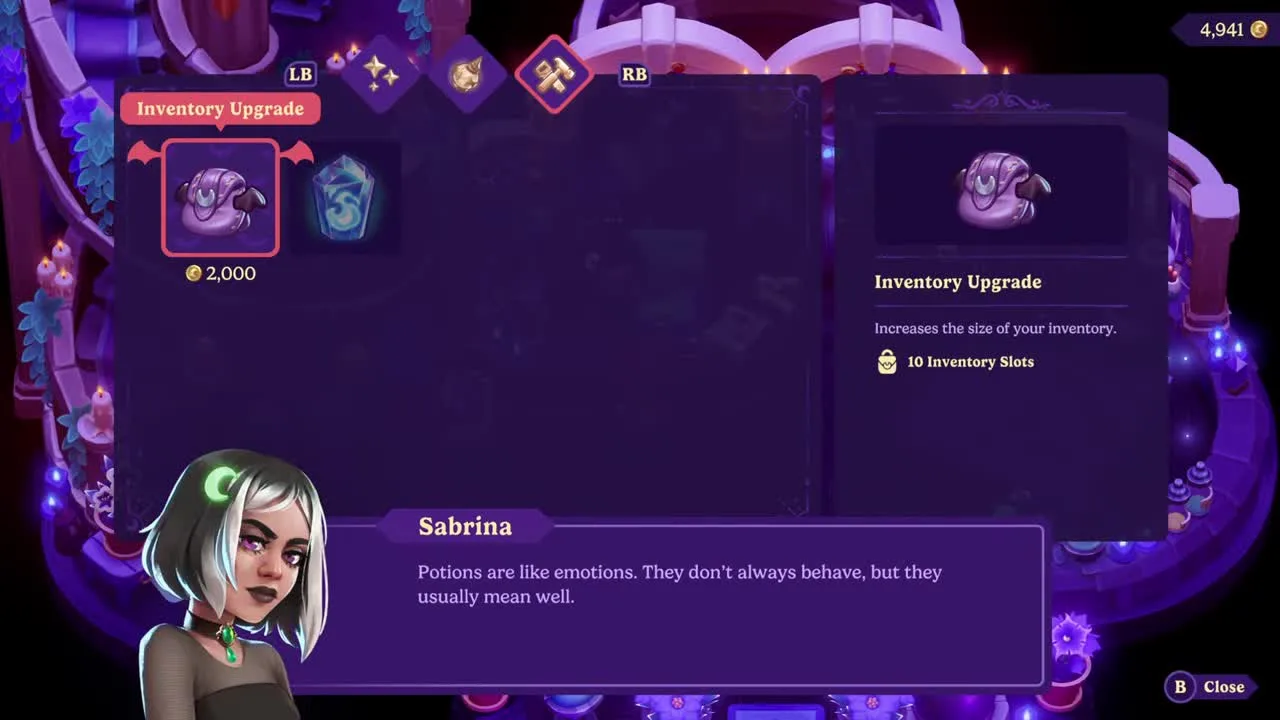
Moonlight Peaks Inventory Upgrade: Backpack & Storage Guide
How to expand your Moonlight Peaks backpack from 20 to 40 slots, where Sabrina sells both inventory upgrades, exact prices, and how unlimited house storage works.
Read guide